
Passwordless Authentication
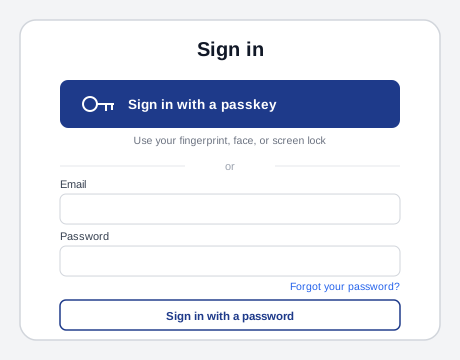 The passkey option gets the same visual weight the password button used to have; the password path doesn’t disappear, it just steps aside.
Background
A passkey lets a person sign in using their device’s own screen lock — fingerprint, face, PIN, or pattern — instead of typing and remembering a password, and unlike a password it resists phishing by construction. There’s no secret string an attacker can trick someone into typing into a fake site. It complements rather than replaces Sign-In and Account Creation‘s existing password-based flow — most services need to run both side by side through a long transition, not swap one for the other overnight.
A passkey lets a person sign in using their device’s own screen lock — fingerprint, face, PIN, or pattern — instead of typing and remembering a password, and unlike a password it resists phishing by construction.
Problem
People are reluctant to give up a familiar sign-in method for an unfamiliar one, “passkey” is a new and confusing term to most people, and a service that pushes passkeys too hard, too early, or with the wrong framing risks abandonment rather than adoption.
People are reluctant to give up a familiar sign-in method for an unfamiliar one, “passkey” is a new and confusing term to most people, and a service that pushes passkeys too hard, too early, or with the wrong framing risks abandonment rather than adoption.
Solution
Introduce passkeys at the moment they’re most likely to land
Prompt for passkey creation at one of four specific moments: during account creation, as the default sign-up option with a way to opt out still visible; right after a person resets a forgotten password, since the frustration they just felt makes the pitch land better; immediately after a successful password sign-in; and inside account settings, where an existing person is already thinking about their account. Skip the prompt at other moments people aren’t actually receptive to it.
Lead with the benefit, not the technology
State what a passkey gets someone — speed, simplicity, security — before explaining what it technically is, and never start the creation flow without stating that benefit first. Keep the term “passkey” present so people learn to recognize it, but keep it out of the header the first few times someone sees it; body copy tying it to a familiar action (fingerprint, face, screen lock) does the explaining a header can’t.
Position a passkey as an alternative, not a replacement
Frame a passkey as one more way to sign in, not the end of passwords — many people still want a password kept as a backup, and not every device supports passkeys yet. Avoid any copy implying passwords are being removed.
Use one consistent label, icon, and confirmation step
Use the exact button label “Create a passkey” everywhere it appears, matching the platform’s own account-selector screens rather than inventing a synonym; use one consistent passkey icon (filled, light/dark-theme aware) across the whole product so a person recognizes the pattern instantly the next time they see it; and always show a confirmation screen once a passkey is actually created, since testing found people want clear closure after their first time setting one up, not a smaller, easy-to-miss notification.
Consolidate every sign-in method into one screen
Show every available way to sign in — passkey, password, federated login — in one account-selector screen rather than a separate button for each, and default to proposing whichever method is actually safest and fastest when a person has more than one. Always keep a visible “More options”/“Sign-in options” escape hatch, so someone who can’t find their account or wants a different saved credential isn’t stuck.
Make an invisible credential visible in its own settings page
A passkey has no characters to show the way a password does, so a settings page listing them needs to work harder to make them legible: show which password manager holds each one, when it was created and last used, and a delete option — but never surface the specific device it was created on, since that wrongly implies it only works there.
Verify identity before creating one, and notify after
Require the strongest authentication a person already has before letting them create a new passkey, not just a passing session — otherwise an attacker who’s merely hijacked a session can quietly add their own passkey and keep access even after a password reset. Notify the account owner whenever a new passkey is created for their account, the same way a new device or a changed password would trigger a notification.
Require the strongest authentication a person already has before letting them create a new passkey, not just a passing session — otherwise an attacker who’s merely hijacked a session can quietly add their own passkey and keep access even after a password reset.
Calibrate confirmation friction to what a biometric check is actually protecting
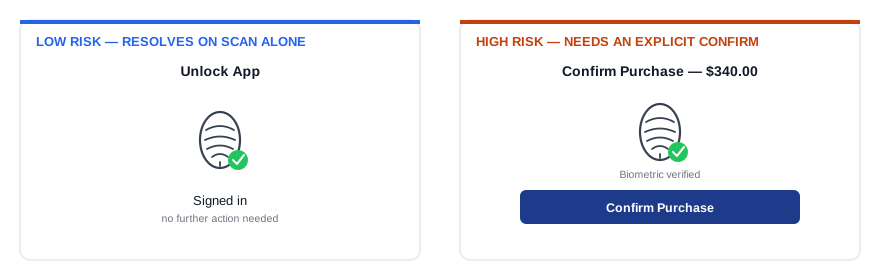 A passed fingerprint scan is enough on its own to unlock the app, but the same scan only clears the way for a $340 purchase — confirming it still takes one more explicit tap.
Use a passkey-style flow for a device’s initial sign-in, and either that same flow or a direct biometric prompt for a subsequent re-authentication of one specific sensitive action inside an already-signed-in session. For that second case, require an explicit confirming action — not just a passive face or fingerprint scan — before a high-risk action like a purchase goes through, but let a lower-risk action skip that extra step and resolve as soon as the biometric check itself passes. Biometric login also carries its own legal weight beyond the UX decision: large-scale processing of biometric data can trigger GDPR (General Data Protection Regulation)‘s Data Protection Officer and impact-assessment requirements.
Related Concepts
Patterns
Standards
Sources
Android Developers: Passkey Design Patterns and Biometric Authentication is the source for the four passkey-prompt moments, the benefit-before-technology and consistent-label/icon content rules, the unified account-selector/settings-page guidance, and the initial-sign-in-vs-step-up-reauthentication distinction with its risk-calibrated confirmation rule.
web.dev: Passkey User Experience Design is the source for Google’s own passkey rollout case study — leading with convenience over security framing, building term familiarity through the device actions that trigger it, timing the prompt to people already primed to accept it, positioning a passkey as an alternative rather than a replacement, and the verify-before-creating and notify-after-creating account-safety points.