
Direct Manipulation
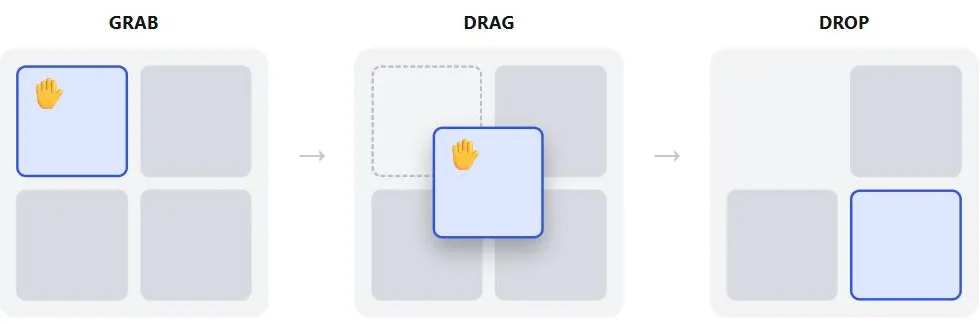 A cursor change signals it’s draggable before the customer tries; a ghost that follows the cursor mid-drag confirms the drag is actually happening, not just that something moved.
Background
Direct manipulation can be used to reposition a floating window so a customer can see what’s underneath it. It’s an alternative to the step-by-step, form-heavy interaction of a process funnel for tasks that are inherently visual rather than sequential. It feels more natural than a form for visual tasks, but unlike a button or link it isn’t self-evidently interactive. It only works if an object’s movability is explicitly signaled (cursor change, appearance change, drag feedback; see below), and that signaling itself costs design and implementation effort a form-based interface wouldn’t need.
It only works if an object’s movability is explicitly signaled (cursor change, appearance change, drag feedback; see below), and that signaling itself costs design and implementation effort a form-based interface wouldn’t need.
Problem
A step-by-step, form-based interface can technically support tasks like reordering modules or grouping items into folders, but the underlying interaction is an abstraction of the actual content — customers have to think about their photos or their layout in terms of dropdowns and checkboxes rather than the things themselves, and it typically requires many clicks and full page reloads to accomplish something that should feel immediate.
Solution
Direct manipulation is the ability to act on on-screen elements directly — typically by dragging — rather than through abstract forms and checkboxes, giving an immediate sense of feedback and control. It’s ubiquitous in desktop software but comparatively rare on the Web, where it’s most valuable for tasks like organizing large customer-created sets of items (photos, folders, homepage modules) or editing visual things (layouts, designs, views) that are visual to begin with and awkward to describe through a form.
Direct manipulation is the ability to act on on-screen elements directly — typically by dragging — rather than through abstract forms and checkboxes, giving an immediate sense of feedback and control.
Grab an object
The core design decision is what part of an element a customer must click to “grab” it, and there are three common approaches, each with a different tradeoff:
- Grab the whole object — the most intuitive option, viable whenever the object doesn’t need to support other click actions (Flickr’s photo-thumbnail drag). Where an object does need other actions too (Yahoo! Mail’s message list, where a click opens a message but a click-hold-drag moves it), the two behaviors have to be disambiguated some other way.
- Grab a title bar — the standard desktop-windowing convention (click the title bar, drag, drop), useful specifically because it separates “move this” from whatever else the object underneath does when clicked directly (Google News lets customers drag a section by its title bar without triggering the headline links inside it).
- Grab a dedicated handle — a small, explicit control added just for grabbing. Handles cost screen space and add visual clutter, so they’re best reserved for elements whose movability isn’t otherwise obvious (a map’s zoom control) rather than elements customers already recognize as draggable (a window with a title bar, where an extra handle would be redundant).
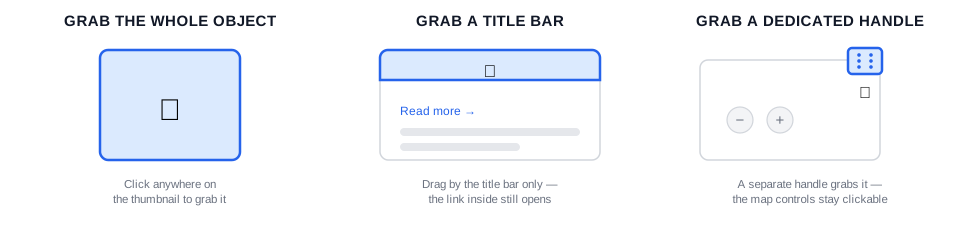 Whichever target is highlighted, the rest of the element keeps doing its own job — the link still opens, the map controls still click.
Communicate that something is movable
Movability has to be visually signaled — an Affordance the customer can perceive before they try dragging:
- Change the cursor on rollover — the same convention browsers already use for hyperlinks, extended to a four-way arrow or similar over a draggable object.
- Change the object’s appearance on rollover — Flickr’s thumbnails enlarge on hover, hinting that the object has dynamic behavior, though this alone doesn’t guarantee the customer infers it’s draggable specifically.
- Give drag feedback — a translucent ghost of the object that follows the cursor during the drag and resolves solidly at the drop point, matching what customers already expect from desktop drag-and-drop. Without this, customers may not be sure anything is actually happening mid-drag.
- Give explicit instructions where visual cues alone aren’t confident enough — a short, prominent note (“Drag the map with your mouse, or double-click to zoom”) for first-time customers.
Without this, customers may not be sure anything is actually happening mid-drag.
Related Concepts
Patterns
Principles
Sources
The Design of Sites: Pattern Group H — Helping Customers Complete Tasks (Pattern H9) is this page’s source — the three grab techniques (whole object, title bar, dedicated handle) and their tradeoffs, and the movability-signaling cues (cursor change, appearance change, drag-ghost feedback, explicit instructions).