
Icons
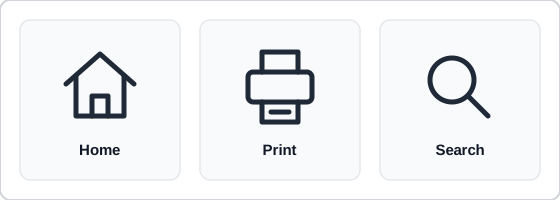 These three are about as close to universal as icons get; almost any other symbol needs a text label to be read correctly.
Background
An icon is a small symbol standing for an object, action, or idea, and when it’s recognized at a glance it earns its place: it can signpost a familiar action, help someone find their way through content, give a finger or cursor a bigger target, and even cross a language barrier. The catch is that real recognition is rare — only a handful of icons, such as home, print, and search, are understood by nearly everyone — so for most icons, the meaning comes from the text beside them, not the symbol itself.
The catch is that real recognition is rare — only a handful of icons, such as home, print, and search, are understood by nearly everyone — so for most icons, the meaning comes from the text beside them, not the symbol itself.
Problem
Icons are tempting to add, so they accumulate without a clear job. Over time a site can end up with dozens of them, used for navigation, decoration, and buttons alike, drawn in different styles, and sometimes reusing one symbol for different things, until people start asking whether there’s a legend. That inconsistency adds Cognitive Load instead of saving it. An ambiguous icon can also do active harm: in testing on a health site, an exclamation mark on warning boxes led some readers to skip them as if they were advertising, and others to treat them as more urgent than the site’s emergency instructions.
An ambiguous icon can also do active harm: in testing on a health site, an exclamation mark on warning boxes led some readers to skip them as if they were advertising, and others to treat them as more urgent than the site’s emergency instructions.
Solution
Add an icon only when it meets a user need
Use icons sparingly, never for decoration, and only where there’s evidence a user needs one. An icon is worth adding to:
- Draw attention to an action — paired with text it directly relates to.
- Help people find key information — a phone number or email address picked out at a glance.
- Enlarge a target — for a common action like opening a menu or sharing an article.
Most useful icons do one of three jobs: navigation (moving through a service), control (sorting, organizing, and adjusting information), or quick reference (spotting frequently used objects or links). Where a set has already grown, audit it before adding more: list every icon in use, the need each one meets, whether people understand it, whether it’s essential to its page, and whether it’s accessible, then keep only the ones that clear that bar.
Don’t use an icon to patch structure or to illustrate
An icon can’t make something easy to find on a page that’s hard to navigate — it doesn’t fix an unclear hierarchy or confusing organization. Nor is it an illustration: an icon has a specific, functional meaning, so using the “visibility” eye icon to depict an actual eye blurs both. Where a page needs visual explanation, use an illustration instead (see Effective Images).
Pair icons with text labels
Always give an icon a visible text label. An icon on its own makes people stop and think, especially when it’s unfamiliar, and a customer can recognize a symbol as familiar without being able to say what it does. Test icons for recognition and memorability with the actual audience rather than assuming they read universally.
An icon on its own makes people stop and think, especially when it’s unfamiliar, and a customer can recognize a symbol as familiar without being able to say what it does.
Sometimes the word alone works better than the icon and word together. A hamburger icon isn’t universally understood and would need a label to be accessible anyway, so a plain “Menu” link can replace it outright. On warning boxes, the word “Important” did what an exclamation-mark icon couldn’t. The few conventional icons that do stand alone in an established position, such as search in a header, still need an accessible name (see Make icons accessible below).
Give each icon one meaning everywhere
An icon used more than once must mean the same thing, with the same text description, every time: if a blank page means “new document” on most screens, “reformat document” needs a different icon. Never let one icon stand for two things in the same service. Draw a site’s icons as one family, in a consistent style, rather than mixing sets. Consistent meaning especially helps people with some cognitive disabilities and people who are scanning or distracted.
Place icons to show function and direction
Put an icon before its text when it explains what the control does — a printer at the start of a print button. Put a forward icon after the text (“Next” with a right arrow) and a backward icon before it (a left chevron on a back link), so the icon points the way the action goes; see Action Buttons for keeping a directional icon honest about where the interface actually goes. Next to text, center the icon vertically and match its color to the text. Keep icon size consistent across a product — design systems typically work from a small fixed set of sizes, such as 16, 20, 24, and 32 pixels.
Make icons accessible
Hide a decorative icon — one whose meaning the adjacent text already carries — from screen readers, since announcing it is redundant. An icon that carries meaning on its own needs an accessible name instead. An interactive icon belongs inside a real control, such as a button, rather than acting as one by itself:
<a href="/print">
  <svg aria-hidden="true">…</svg>
  Print this page
</a>

<button type="button" aria-label="Search">
  <svg aria-hidden="true">…</svg>
</button>
Putting the name on the button rather than the drawing means a screen reader announces the control, not the picture inside it.
Icons have to meet contrast and size requirements too:
- Contrast — WCAG’s non-text contrast criterion sets a 3:1 floor for icons (see Web Content Accessibility Guidelines (WCAG)), and some design systems, Carbon among them, hold icons to the same 4.5:1 ratio as body text.
- Target size — an icon used as a button needs a target of at least 24 by 24 pixels under WCAG 2.2, or another way to perform the same action. Carbon sets a more generous 44-pixel minimum for every interactive icon, adding padding around the drawing where needed.
See Accessibility for the wider principles behind both.
Test icons in the context they’ll be used
Test icons inside the components and pages they’ll actually appear in, not just on their own, and test again over the life of the product. A set that tested well holds only for the contexts and needs it was tested against. Add to it only when research shows something is missing.
Related Concepts
Patterns
Principles
Standards
Sources
Icon (U.S. Web Design System) (public domain) is the source for the three appropriate uses of an icon, the cases for choosing something else (patching structure, illustration), the home/print/search recognition point and recognition testing, one meaning per icon (with the “new document” example), placing interactive icons inside real controls, and hiding decorative icons from screen readers.
Icons: Avoid Temptation and Start with User Needs (NHS Digital) (OGL v3.0) supplies the icon audit, the hamburger-to-”Menu” and exclamation-to-”Important” test findings, drawing icons as one family, and holding a tested set only to the contexts it was tested in.
Icons (NHS Digital Service Manual) (OGL v3.0) is the source for using icons sparingly and never as decoration, giving an unlabeled search icon an accessible name, non-text contrast, and the 24-pixel target-size minimum.
Icons (ONS Design System) (OGL v3.0) is the source for always pairing an icon with a text label, and for placing icons before text to show function and forward/backward icons to show direction.
Good Icons Should Be Invisible (Home Office Digital) (OGL v3.0) supplies the navigation/control/quick-reference icon types, the research finding that inconsistent icons raised cognitive load (the request for a legend), and testing icons in and out of context.
Icons (Scottish Government Design System) (OGL v3.0) is the source for adding icons only on evidenced user need and for never letting one icon represent two things in a service.
Carbon Design System: Accessibility, Content, Color, Motion, Spacing, and Icon Guidelines (IBM) (Apache 2.0) supplies the consistent icon-size set, center-aligning icons and matching their color to adjacent text, the 4.5:1 icon contrast ratio, and the 44-pixel interactive target.