
Auto-save
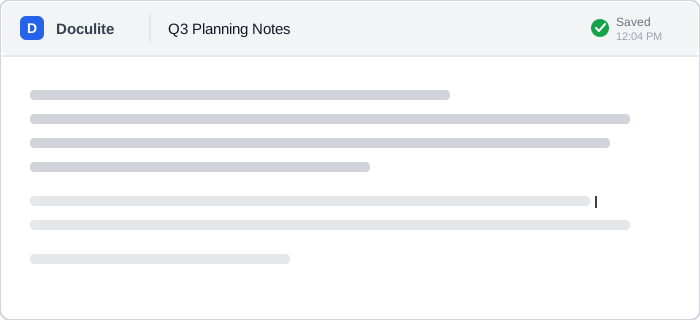 Doculite reports exactly when the document last saved, right next to its title — there is no save button anywhere in view.
Problem
Interfaces where users invest significant effort — rich text editors, code editors, long forms, design canvases — risk losing that work to crashes, power failures, accidental navigation, or simply forgetting to click save.
Interfaces where users invest significant effort — rich text editors, code editors, long forms, design canvases — risk losing that work to crashes, power failures, accidental navigation, or simply forgetting to click save.
Solution
Auto-save is the practice of automatically persisting user-entered data at regular intervals — or in response to edit events — without requiring an explicit save action.
Most major productivity tools default to auto-save: Google Docs, Notion, Figma, Apple Notes, and Microsoft 365 all save continuously in the background, and it has become the expected behavior wherever users invest significant effort. Auto-save doesn’t remove the need for Undo — if anything it raises the stakes, since a mistaken edit is now committed to storage within seconds rather than staying safely unsaved until a customer chooses to save it, so undo has to keep working across already-auto-saved states, not just unsaved ones.
Saving a form’s progress to the server is scoped to authenticated sessions, since a visitor who isn’t signed in has no account to save it against. On an unauthenticated flow, the status indicator below shouldn’t claim a save the server isn’t making.
The “saving” → “saved” → “error” state cycle is a specific instance of loading state design. The same principles apply: indicate progress (don’t leave users wondering), confirm completion without demanding attention, and make failures impossible to miss.
Indicate save status
Users cannot perceive an invisible save, but they need to know their data is safe. A status indicator communicates the system’s current save state without interrupting work:
- Saving in progress — a brief label (“Saving…”) with an optional animated icon; should appear quickly after an edit so users know the system has registered the change
- Save complete — a confirmation (“Saved” or “All changes saved”) that is visible long enough to read but subtle enough not to interrupt the task; many designs auto-hide it after a few seconds. For a longer, multi-step flow, naming the exact save time and a reference ID in the confirmation (“Saved on [date] at [time] — request ID [number]”) gives a customer something concrete to cite if they need support later, though it’s overkill for a lightweight single-page editor.
- Save error — a persistent, actionable notification that does not auto-dismiss; users must know their data is at risk and what they can do (retry, check the connection, copy content to clipboard)
Routine success should be quiet; failure should be conspicuous. This maps to principle 2 in Interface Design Principles (feedback: keep users informed about what the system is doing).
Routine success should be quiet; failure should be conspicuous.
Pair the save-status text with the primary action button via aria-describedby, rather than relying only on the visual indicator, so a screen reader user gets the same confirmation without the page’s visual layout needing to change to convey it:
<span id="save-status">Saved 2 minutes ago</span>
<button aria-describedby="save-status">Continue</button>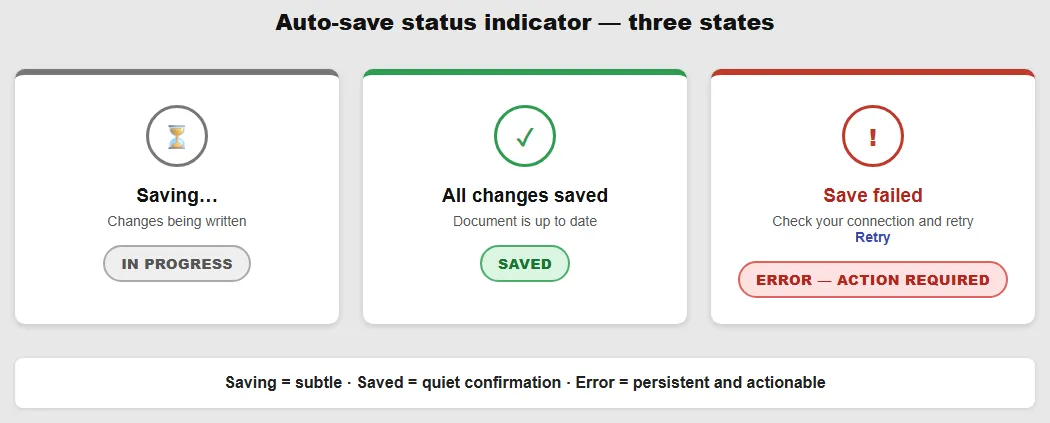 Only the failure state asks the writer to do anything; the other two can be ignored without consequence.
Debounce save timing
Auto-save typically fires on a debounced interval — after a short idle period following the last edit event — rather than on every keystroke. Per-keystroke saves impose unnecessary write load on both client and server; debouncing (waiting a second or two after the last change) balances responsiveness against overhead while still saving frequently enough to matter.
Per-keystroke saves impose unnecessary write load on both client and server; debouncing (waiting a second or two after the last change) balances responsiveness against overhead while still saving frequently enough to matter.
Support offline saving
Browser storage APIs (IndexedDB, localStorage) allow auto-save to continue locally when a network connection is absent. On reconnect, the local changes sync to the server. This is the behavior Google Docs describes as “ready for offline use” — edits made offline are not lost, just held until connectivity returns.
Related Concepts
Patterns
Principles
Further reading
ReForm: Free Chapters and Tips (reform.user-interface.io — ungated PDF, no stated open license) demonstrates auto-save status indicators using Google Docs as the worked example, showing the “Saving…” → “All changes saved” → “ready for offline use” state sequence with annotated screenshots.
Sources
Autosave (VA.gov Design System) is the source for the authenticated-only scoping caveat, the reference-ID confirmation-message pattern, and the aria-describedby accessibility technique above.