
Drill-Down Options
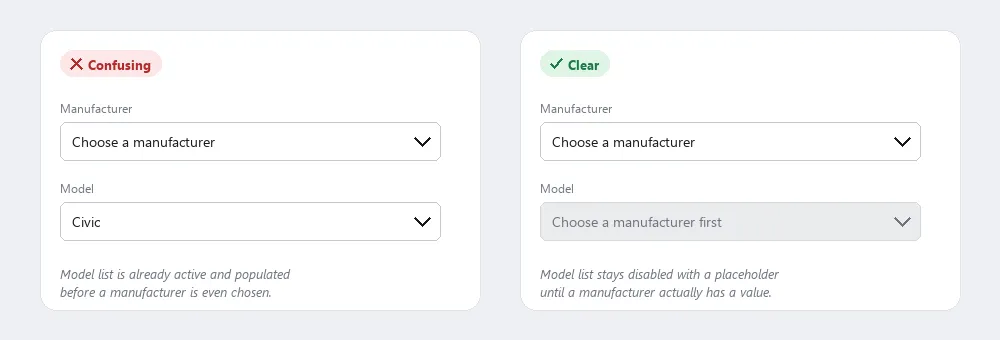 A dependent list left active before its parent has a value doesn’t signal that a specific order is required at all — disabling it with a placeholder does.
Background
Base the choice between this pattern and Predictive Input on how the option set behaves: drill-down options suit sets that are genuinely hierarchical and interdependent (a manufacturer determining valid models). Predictive input suits sets that are simply long, change often, or need to accept a value that isn’t on any predefined list.
Base the choice between this pattern and Predictive Input on how the option set behaves: drill-down options suit sets that are genuinely hierarchical and interdependent (a manufacturer determining valid models).
Problem
Picking one option from a long list is daunting, and predictive input isn’t always the right fix — some option sets are cleanly hierarchical, where the right approach is narrowing customers down step by step instead of matching text as they type.
Solution
Narrow the option set progressively through a sequence of dependent choices — either stacked pick lists or nested menus — rather than presenting the full list at once.
Use hierarchical pick lists
Multiple pick lists on one page, where the options available in a secondary (or tertiary) list depend on what was chosen in the primary one — selecting a phone manufacturer, for instance, narrows a second list to only that manufacturer’s models. Built with standard HTML form controls, this is the simplest implementation of the pattern.
Deactivate dependent lists until their parent is chosen
If a secondary list is active (and possibly populated with real-looking options) before the customer has made a primary selection, it’s not obvious that a specific order is required at all, and customers may skip the primary list entirely. Grey out or disable each dependent list until its parent has a value, and give every list — including deactivated ones — a generic placeholder entry (“Choose a Model”) rather than defaulting to a real option, so it’s clear a further choice is expected.
<label for="manufacturer">Manufacturer</label>
<select id="manufacturer" name="manufacturer">
  <option value="">Choose a manufacturer</option>
  <option value="honda">Honda</option>
  <option value="toyota">Toyota</option>
</select>

<label for="model">Model</label>
<select id="model" name="model" disabled>
  <option value="">Choose a manufacturer first</option>
</select>
Or split the levels across separate pages
An alternative to stacking dependent pick lists on one page is to give each level its own page, forcing selection order structurally rather than through disabled-state styling. This costs a page load per level, but simplifies implementation when a later step needs to show information that depends on the earlier choice.
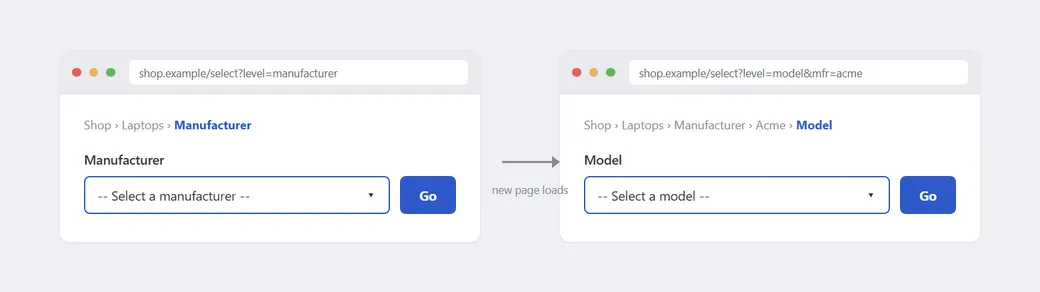 Each level gets its own URL and breadcrumb step, rather than both lists sharing one page — a genuine page load, not just an enabled/disabled state change.
Use hierarchical menus
A drill-down implemented as nested hover or click menus rather than pick lists — rolling over a top-level category reveals a secondary menu of its children, and so on. This shares the same information-architecture groundwork as hierarchical organization and navigation menus, applied here to option selection rather than site navigation. The characteristic failure mode is precision: reaching a secondary option means moving the cursor along a narrow path defined by the primary item’s text, which is unforgiving with small fonts or on less capable devices.
The characteristic failure mode is precision: reaching a secondary option means moving the cursor along a narrow path defined by the primary item’s text, which is unforgiving with small fonts or on less capable devices.
Tune the menu’s timing to be forgiving
Open the secondary menu after a short hover delay (or on click) rather than instantly, and once open, keep it “sticky” for a second or two even if the cursor briefly leaves the menu area. This widens the effective path to the secondary option considerably and tolerates the small overshoot most customers will make.
This widens the effective path to the secondary option considerably and tolerates the small overshoot most customers will make.
Related Concepts
Patterns
Principles
Sources
The Design of Sites: Pattern Group H — Helping Customers Complete Tasks (Pattern H12) is this page’s source — the hierarchical-pick-list and hierarchical-menu implementations, the deactivate-until-parent-chosen guidance, and the hover-delay/sticky-menu timing advice for forgiving cursor precision.